Automating CMG Certificate Installation and Renewal with PowerShell
- Matt Zaske
- September 21, 2026
- 8 minutes
I've written about certificate automation many times in the past, but not on handling certificates with PowerShell. At work I'm a part of the central endpoint engineering team and early this year we had a lengthy conversation about how to handle our Cloud Management Gateway (CMG) certificate renewal. Specifically, who, how, when, and all of the complications that come with those decisions in our environment. At that time I suggested we look at certificate automation for the next iteration after we worked through manual "renewal" of the cert. Switching away from ClickOps to something mechanized is going to provide longer-term value, especially as SSL certificates continue to have their maximum validity periods shortened. What was previously a once-per-[multi-]year process is becoming a more routine action. Which is, as an industry and practice, a Good Thing.
Is This Even Possible?
I've automated certificates on Windows before with Certbot under a more traditional web server configuration and using Let's Encrypt as a Certificate Authority (CA). When as a team we went through the CMG certificate installation process in the Configuration Manager console, there are distinctly different moving parts (and the necessity of uploading the pfx file) which gave me pause. Technically I knew the steps, but there has to be a streamlined way to handle this, right?
So I Went To The Google...
I did a little Googling and it turns out my friend and periodic co-speaker Andrew Johnson had written about this and it was search result #1! I gave his post a look and it contained all of the necessary bits needed to execute my own plan: A PowerShell ACME module to automate certificates, information on the CM cmdlets to install the certificate in the CMG configuration, and a couple example scripts of its use!
I immediately pinged Andrew to thank him which was funny because he was in the car at the time. But that conversation sparked something a little different. Andrew's post walked through using ACME and Let's Encrypt as the CA. While we use Let's Encrypt for some work-related services, we are a member of the InCommon Federation and as such have access to certificate services through InCommon, including ACME support.
My thought became "If this can be automated with/against Let's Encrypt, I should be able to pivot to the InCommon ACME CA (or any ACME CA) for this process!"
Why Not Use Let's Encrypt?
At the end of the day it largely doesn't matter from a technical perspective. My reasons for using an alternative ACME CA (such as the service offered via InCommon) are largely transparency and internal operations improvements for the team:
- InCommon ACME CA affords many product types and certificate validity periods versus the standard (for now) 90-day Let's Encrypt certificates;
- Using InCommon certificate services gives others in the organization/team visibility through the certificate management portal, whereas Let's Encrypt requires other tooling to "see" what is active; and
- InCommon certificate services offer Organization Validated (OV) certificates, which means our configuration allows certificates to be issued without the standard "Domain Validation" (DV) process. This bypasses the need for HTTP or DNS validation of the host.
To be clear, there is no reason not to use Let's Encrypt here. We just have internal access to certificate services that are a "better" fit for our operational needs.
The Initial/"First Time" Script
You will need to obtain information from your CA beforehand. Specifically, you will need:
- ACME EAB Key Id: A key identifier
- ACME EAB HMAC Key: A key secret value
- ACME server endpoint for requests: A URL for your requests
# ACME account access variables (one-time only per user/first-time only)
$eabKid = 'eabKeyIdValueStringGoesHere'
$eabKey = 'eabKeySecretValueStringGoesHere'
$certServer = 'https://acme-provider.fqdn.org/api/path'
# Certificate request variables (necessary for all requests)
$serverName = 'cmgname.your.org'
$emailContact = 'email@your.org'
$cmgName = 'cmgname'
$siteCode = 'P01'
# Certificate password (necessary for pfx/import to CMG; password value isn't retained in practice)
$certPass = ConvertTo-SecureString -String "randomstringgoeshere" -AsPlainText -Force

Import-Module Posh-ACME
# Register Service
Set-PAServer -DirectoryUrl $certServer
New-PAAccount -ExtAcctKID $eabKid -ExtAcctHMACKey $eabKey -Contact $emailContact -AcceptTOS

# Request certificate (-Install adds to local cert store (computer))
$cmgCert = New-PACertificate -Domain $serverName -AcceptTOS -Contact $emailContact -Install

# Connect to CM Provider and configure CMG with the new certificate
Import-Module "E:\Path\to\AdminConsole\bin\ConfigurationManager.psd1" -DisableNameChecking | Out-Null
Set-Location "$($siteCode):\"
$CMG = Get-CMCloudManagementGateway | Where-Object ServiceCName -eq $serverName
if ($null -ne $CMG) {
  # Set Certificate
  Set-CMCloudManagementGateway -Name $cmgName -ServiceCertPath $cmgCert.pfxFile -ServiceCertPassword $certPass
  # Trigger Configuration Sync
  $CMG | Sync-CMCloudManagementGateway
}
The "Renewal" Script(s)
To use Posh-ACME's in-built Submit-Renewal functionality in a scheduled task with a frequent trigger (daily/weekly) and allowed to auto-renew once it's time, a renewal script could look like this:
# Certificate request variables
$serverName = 'cmgname.your.org'
$cmgName = 'cmgname'
$siteCode = 'P01'
# Certificate password (necessary for pfx/import to CMG; password value isn't retained in practice)
$certPass = ConvertTo-SecureString -String "randomstringgoeshere" -AsPlainText -Force

Import-Module Posh-ACME
# Request certificate renewal if it's up (returns a new certificate object if renewal occurs)
if ($cmgCert = Submit-Renewal -MainDomain $serverName) {
  # Install to local cert store (computer)
  $cmgCert | Install-PACertificate

  # Connect to CM Provider and configure CMG with the new certificate
  Import-Module "E:\Path\to\AdminConsole\bin\ConfigurationManager.psd1" -DisableNameChecking | Out-Null
  Set-Location "$($siteCode):\"
  $CMG = Get-CMCloudManagementGateway | Where-Object ServiceCName -eq $serverName
  if ($null -ne $CMG) {
    # Set Certificate
    Set-CMCloudManagementGateway -Name $cmgName -ServiceCertPath $cmgCert.pfxFile -ServiceCertPassword $certPass
    # Trigger Configuration Sync
    $CMG | Sync-CMCloudManagementGateway
  }
}
Remember that a renewal scheduled task must run as the same user/credential/account as the original request as Posh-ACME stores the configuration locally to the user. It is also acceptable to "renew" certificates by triggering or running the initial/"first time" script.
What's The Same?
Comparing against the information Andrew shared in his post most of the process is the same. We must:
- Install/Import the Posh-ACME module;
- Request a certificate for the CMG;
- Load the ConfigurationManager module and jump to the siteserver PSDrive; and
- Set/Update the CMG detail with the new CMG certificate.
What's Different?
- The "setup" or first-time script is quite different. Instead of configuring the plugin arguments and API keys, we specify a different directory (CA) and credentials; and
- I added the
Sync-CMCloudManagementGatewayhook to invoke an immediate sync of the configuration.
Caveats and "Gotchas"
As noted in the source materials (both Andrew's post and Posh-ACME documentation) the module stores the Posh-ACME configuration in the invoking user's profile. This means you need to consider future requests (or "renewals") during deployment. Ideally that would involve a batch/service account if using a scheduled task to automatically handle renewals, but your mileage may vary.
Renewal Automation
Technically a "renewal" is a new certificate request with the same parameters as the expiring certificate. If everyone in a team uses the same configuration (or script) it matters less "who" or "what" invokes the certificate request if it's triggered as part of a routine ops action, but in full automation via scheduled task it's a good practice to not use a regular account. But again, mileage varies wildly. Implement what fits your organization best.
For example, our short-term plan is manual trigger on an operations calendar, in part for greater team comfort and awareness with the process. We're considering a deployment for the future via runbook that will handle requests automatically. Since the details don't matter request over request for renewals, it's simple enough to run the initial/"first time" script on a throwaway environment as the automation.
Permissions
One of the considerations in my work environment is how distributed the infrastructure is, including roles and access. We rarely run things directly on the siteserver and have multiple accounts with varied access to Configuration Manager. As long as you can access the siteserver PSDrive with proper permissions these scripts can be run from any host. That said, these permissions are necessary:
- Account must have permission to modify CMG settings on the siteserver; and
- Account must have Administrator permissions on the certificate-requesting/generating host if using the
-Installparameter in theNew-PACertificaterequest.- If
-Installis provided the generated certificate is added to the local computer's certificate store; requires Administrator rights. - If
-Installis omitted the certificate will only be available in the invoking user's local profile; this does not require Administrator rights on the requesting/generating host.
- If
Time To Completion
The certificate request takes less than a minute under typical circumstances. The time to completion at which point the CMG is actively serving the new certificate can take upwards of 15 minutes. The certificate details are synchronized to the CMG which takes a few minutes, and then the CMG itself restarts all of the necessary bits which takes a few more minutes.
There are two spot checks you can make to verify things are behaving. First is to compare the new certificate thumbprint value with the "Certificate file" property of the CMG settings:
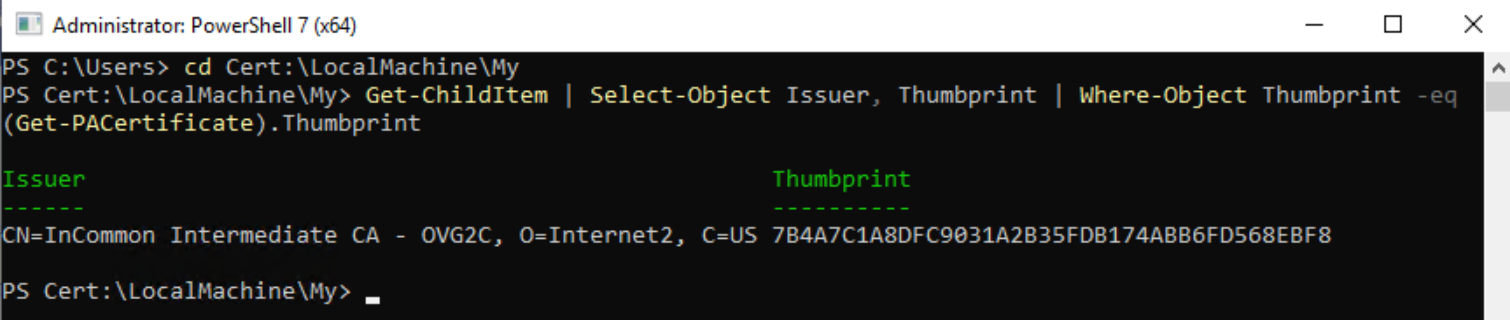
Get-ChildItem | Select-Object Issuer, Thumbprint | Where-Object Thumbprint -eq (Get-PACertificate).Thumbprint will output the detail above for the recently-minted certificate.
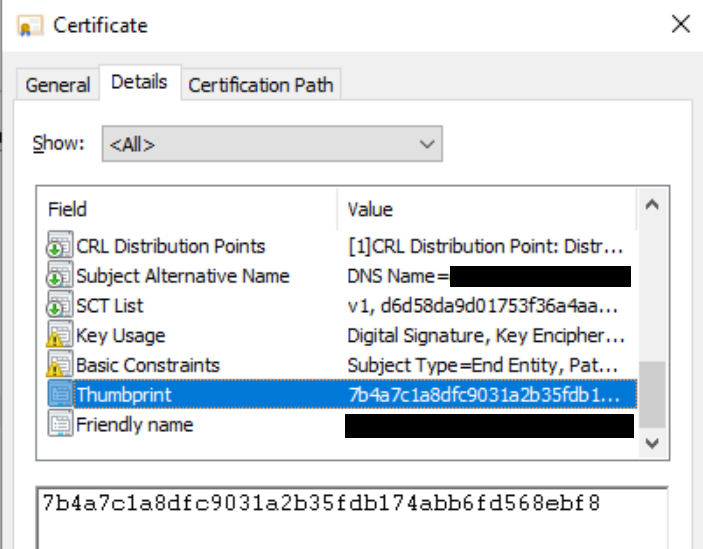
You can also obtain the certificate thumbprint value from the "Manage computer certificates" GUI interface as illustrated above.

The thumbprint value should match the CMG properties.
After ~15 minutes, you can also examine the served certificate of your CMG with a browser by going to https://cmgname.your.org/ and verifying the validity period (and/or serial number or other details) of the certificate details:

It's Remarkably Straightforward
I thought this would be far more complex than it turned out. While there are many moving parts, the most complicated of it all in my environment is determining what mechanism we'll be using for "renewals" now mechanization is in place. That's a non-technical problem as we decide what process will work best for our unique environment.
While I spent bits and pieces of time over ~6 months looking into automation for the CMG certificate (when I first brought up automation to the time of next renewal), my total time spent in evaluation, testing, and implementation is only about one business day. Here's to hoping you find these nuggets useful in your own environment!
Upcoming Speaker Events
I am speaking at MMS Midway Edition, October 25-28, 2026!

Recent Posts
Past Speaking Engagements
I was a speaker at MMSMOA, May 3-7, 2026!
I was a speaker at MMS Music City Edition, October 12-15, 2025!

I was a speaker at TCSMUG Autopilot/OSD Day, July 15, 2025!

I was a speaker at MMSMOA, May 4-8, 2025!
I was a speaker at BrainStorm K20 Wisconsin Dells, March 9-11, 2025!

I was a speaker at MMS Flamingo Edition, October 20-23, 2024!

I was a speaker at TCSMUG OSD Day, July 31, 2024!
I was a speaker at NWSCUG, July 19, 2024!

I was a speaker at MMSMOA, May 5-9, 2024!
I was a speaker at BrainStorm K20 Wisconsin Dells, March 10-12, 2024!
I was a speaker at MMS Miami Beach, October 29-November 1, 2023